Hi,
- I have a table
People with name and e-mail columns.
- I did setup Data source
List people as a List multiple rows - people and added to the Form element a Choose field connected to List people Data source.
- This Choose field has Formulas as follows:
- Option names -
Data records > List people > [All] > name
- Option values -
Data records > List people > [All] > Id
- Next I have a Text field.
How can I populate that Text field with corresponding email?
I tried Single row data source but I don’t know how/where to get Row Id.
Any ideas?
Thank you.
@frederikdc could you please help with this request? 
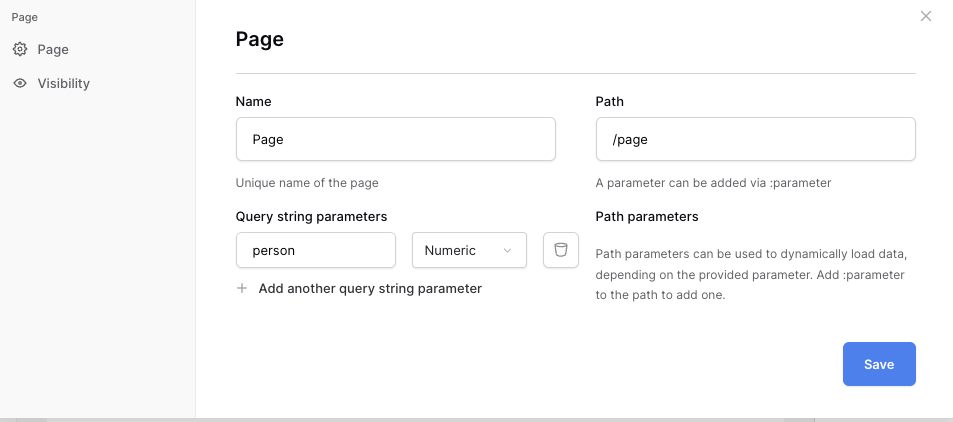
You can do this with a querystring parameter. Add a parameter to the page
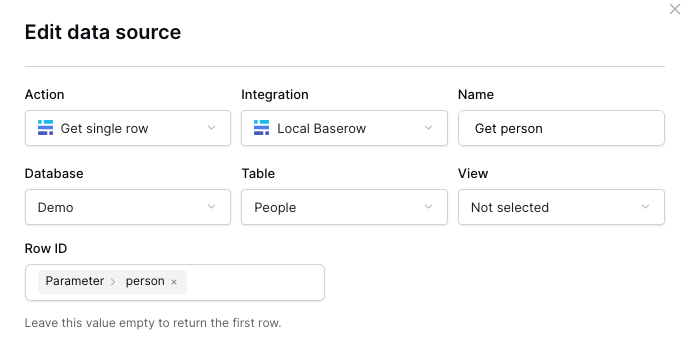
You can use this parameter to create a data source that returns a single record
Next, use a Record selector element instead of a Choice element and link your List people data source to the element.
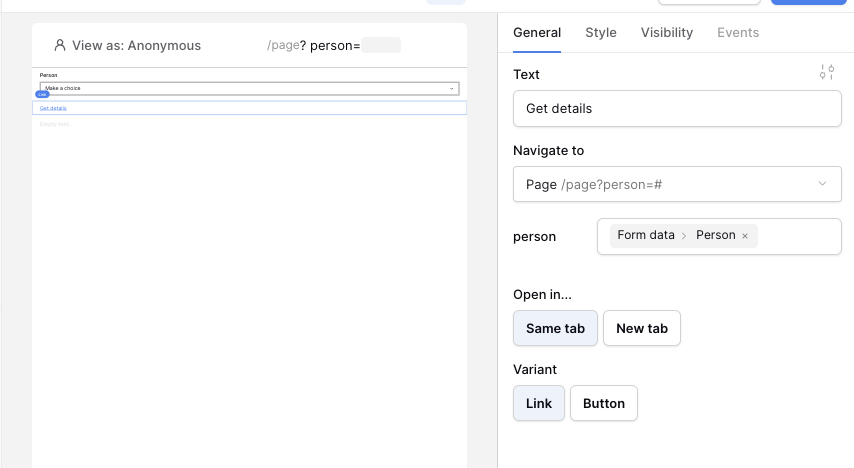
Since there is no event to detect a change in the Record selector, you need a Link element that links to the same page using the input of the Record selector as the parameter
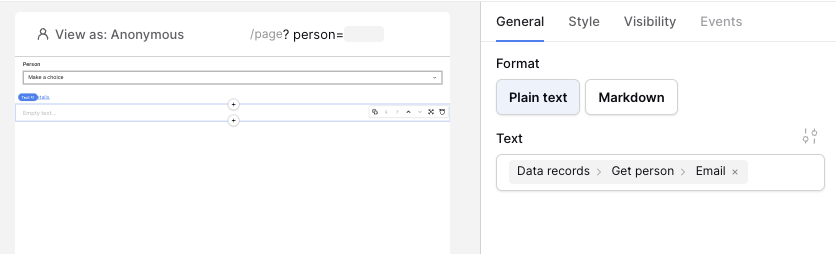
Finally, add a Text element and set the text to the data source that gets a single person.
Hi There.
I know this is an old thread now but it is exactly the solution I needed. However, whilst it works fine for what I need and allows me to select the right record etc., when I load the page I initially get the following error message in a pop-up
Invalid form
Failed to load “Get a single row” data: One or more fields contain invalid values.
Value error for “row_id“: The value is required
If I ignore the message, the form works fine. Is there a way to avoid this message appearing each time the page loads please?
@frederikdc could you please take a look here 
Hi,
That’s because you are loading the data source to get a single record when there is no query string parameter set (yet).
A work around here is not using a Get single row data source, but still using List multiple rows.
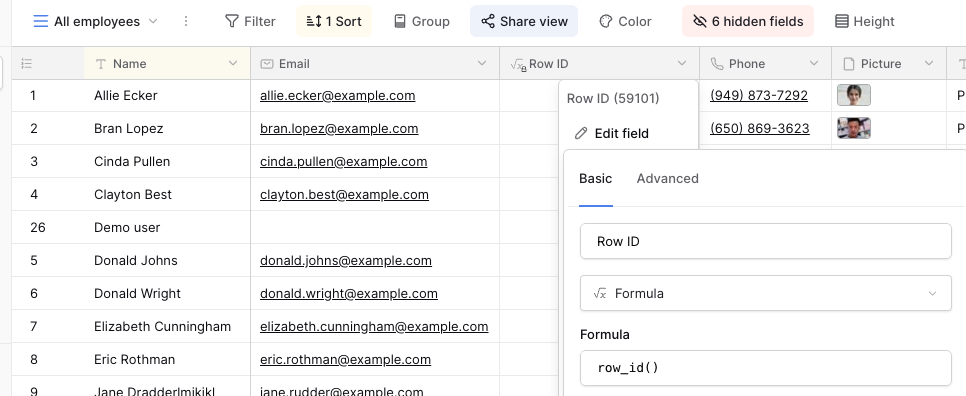
- Open the table where you need the data from (in my example Employees) and add a formula field
- Name the field
Row ID and set the formula to row_id()
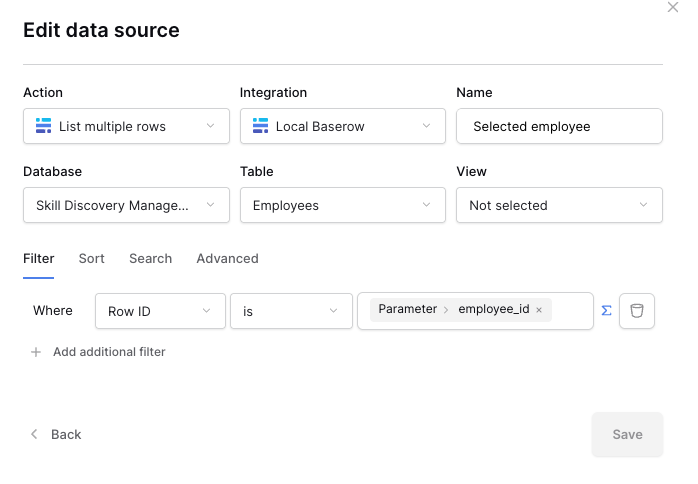
Open your application, remove the data source that gets the single row and create a new data source:
- Use
List multiple rows
- Set the filter so that the Row ID is equal to the parameter
- Add a text field and set the content to
Selected Employee > [All] > Name
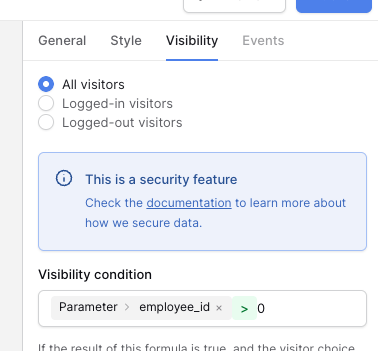
- Open the Visibility tab and set the condition to
Parameter > employee_id > 0
This hides the Text element if no employee is selected, otherwise it shows the selected employee